How to Export Business Documents to PDF and Word
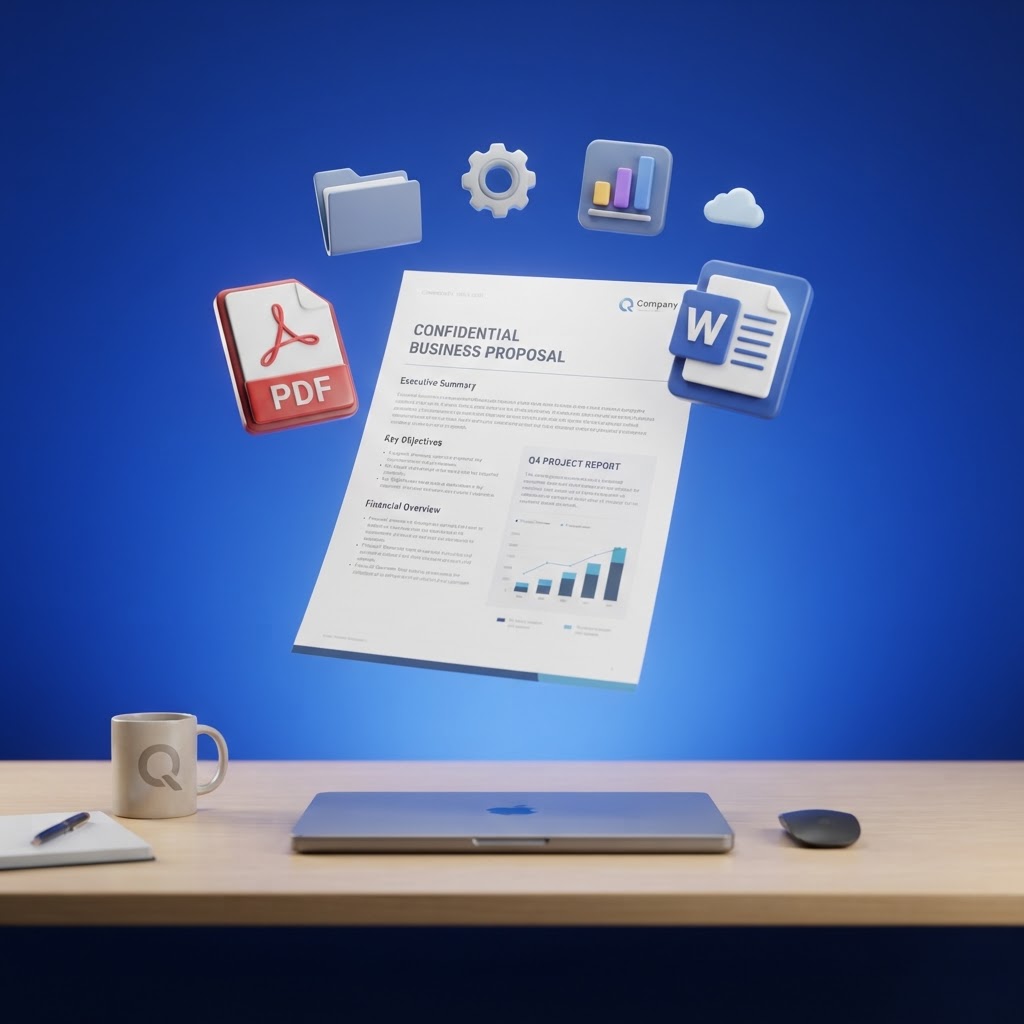
Choosing the right format — and exporting it without losing formatting — is the last step in creating a document, and it matters more than people think.
PDF vs Word: when to use each
Use PDF when the document is finished and you want it to look identical on every screen — policies, reports, proposals sent externally. Use Word (.docx) when the recipient needs to edit or comment — drafts circulating for review.
Keep your formatting on export
The most common export problem is losing fonts, colours and layout. Exporting from a tool that respects your template — rather than copy-pasting into a blank document — preserves headings, tables, images and styling.
Headers, footers and page numbers
Professional documents carry a logo in the header and page numbers in the footer. These should appear automatically on every page, including "Page X of Y" so multi-page documents are easy to reference.
Cover pages
For formal documents, a cover page — with a logo, document type and date — sets the tone before the reader reaches the content. Editi supports several cover layouts (classic, minimal, banner and split).
Export from Editi
Editi exports to both PDF and Word with your template's fonts, colours, headers, footers and page numbers intact — so the file you send looks exactly like the document you built. Try it with a template.